Deadly Escape Controls & Input Reference
Master movement, aiming, and interaction before the infirmary corridors punish hesitation.
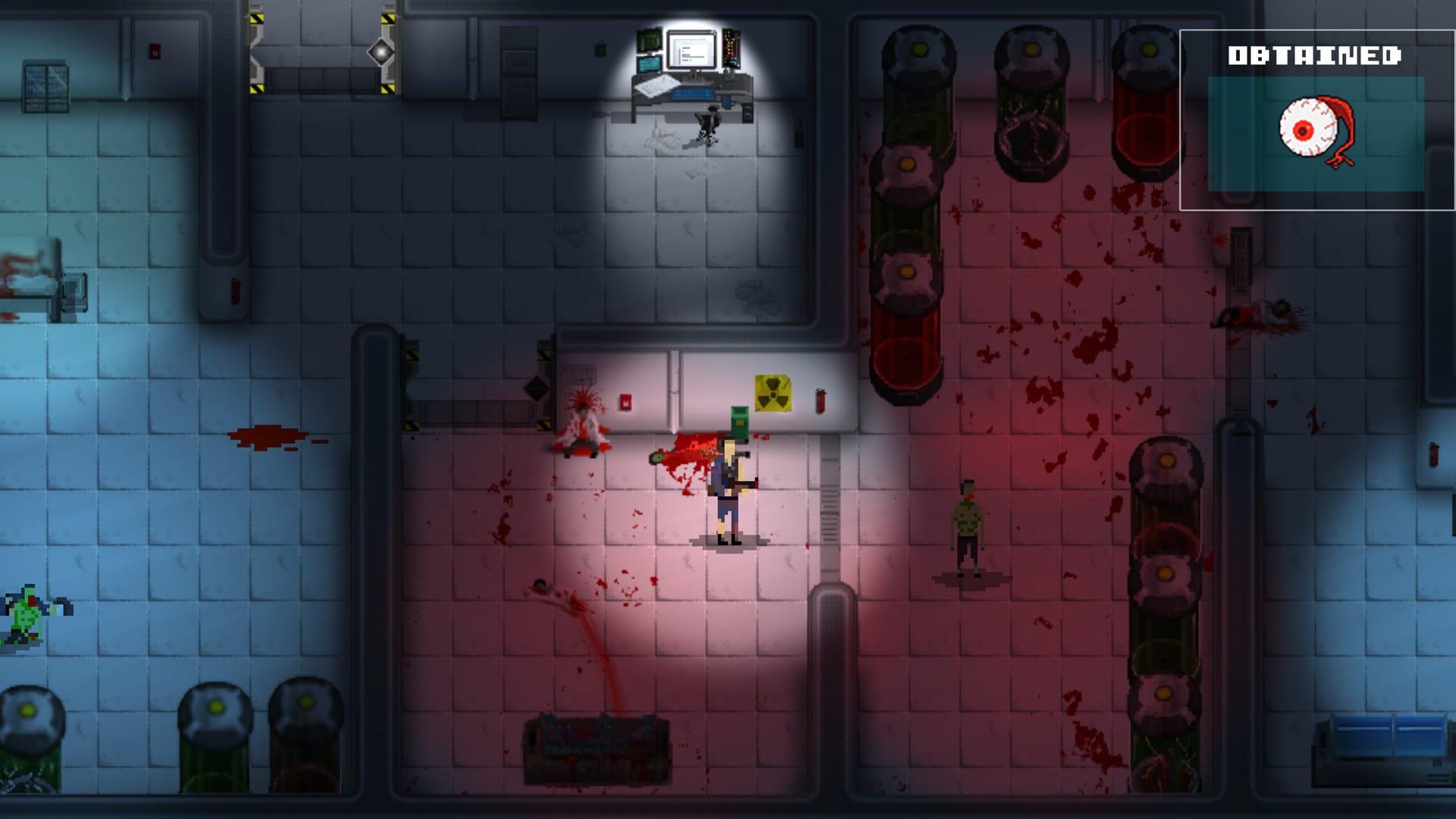
Deadly Escape uses a familiar PC control scheme: WASD movement with mouse aim and shooting. The top-down camera means your cursor sets facing direction while independent movement keys let you strafe around undead and environmental hazards. This page documents default bindings, combat inputs, interaction prompts, pause behavior, and platform-specific notes for macOS and Linux builds sold on Steam alongside Windows.
If you are brand new to the game, read Getting Started first for chapter rules and save behavior, then return here before your first firefight. Combat applications of these controls — reload timing, weapon swapping, medkit use — are expanded in Combat & Ammo.
Default keyboard and mouse bindings
The game follows standard twin-stick shooter conventions mapped to keyboard and mouse:
| Action | Default binding | Notes |
|---|---|---|
| Move forward / back / strafe | W / S / A / D | Movement is independent of aim direction |
| Aim | Mouse cursor | Character rotates toward the pointer |
| Fire weapon | Left mouse button | Hold for automatic weapons; tap for precision handgun shots |
| Interact / use | E or F | Opens doors, picks up keys, reads notes, activates generators |
| Reload | R | Only when a compatible ammo type is in inventory |
| Switch weapon | Number keys or scroll wheel | Handgun, shotgun, and rifle once collected |
| Pause / menu | Escape | Opens pause menu; use during jump scares or macOS menu bar conflicts |
| Confirm / UI select | Left mouse or Enter | Menus and keypad entry screens |
Exact labels may vary slightly by build, but Steam discussions and store tags consistently describe WASD plus mouse combat. Check the in-game options menu on first launch to confirm remapped keys.
Movement and aiming fundamentals
Top-down horror lives or dies on spacing. Use WASD to circle enemies while keeping the cursor on their upper body for faster kills. Backpedaling without adjusting aim leaves you shooting into empty tiles — a common reason new players burn handgun ammo in the infirmary.
Strafing around corners lets you peek into doorways without committing your whole hitbox. This matters in narrow infirmary halls documented on the Infirmary & Facility Map where multiple undead spawn behind gurneys.
Diagonal movement combines two keys (W+D, etc.). The game does not require sprint toggles for normal navigation; speed upgrades are not part of the base campaign.
Mouse sensitivity is usually fixed or offered through a single slider in options. Lower sensitivity helps land handgun headshots counted toward the That Was Close achievement discussed in Combat & Ammo.
Combat controls in practice
Handgun: Tap fire for accuracy at range; the starter weapon in chapter one. Reload often — magazine size is small.
Shotgun: Close-range stagger; slower reload animation. Switch before entering chokepoints noted in Full Walkthrough.
Rifle: Mid-to-long range; aim steady before firing to conserve rare ammo and progress Never saw it coming kill counts.
Reloading is not cancel-safe in most survival horror designs; stand behind cover when possible. If reload keys fail, you may be full or holding the wrong ammo type.
Interaction and puzzle inputs
Many progression blockers use the same interact key as note pickup:
- Doors and keycard readers — approach until a prompt appears, press interact.
- Notes and lore files — interact to read; content summarized on Story & Lore.
- Generator and fuse panels — hold or tap interact at highlighted switches; ties to I See The Light.
- Keypads — interact to open UI, type digits with keyboard or on-screen buttons, confirm with Enter.
- Explosive barrels — shoot with left mouse rather than interact; see Combat & Ammo for Green Rain routing.
If a prompt fails to appear, rotate slightly or inch closer. Top-down hitboxes can be tighter than sprites suggest.
Pause, menus, and quitting
Escape opens the pause overlay where you adjust options, restart, or exit to desktop. Use pause to plan routes through locked wings without undead pressure.
Steam Overlay (Shift+Tab default) still works for guides, but pausing in-game is safer during combat. On Linux, some window managers capture Escape for workspace switching — test bindings early.
Controller and gamepad status
Community threads from May 2018 asked whether controller support would arrive. Do not assume plug-and-play gamepad support. Keyboard and mouse remain the documented PC experience. If you experiment with Steam Input, map right stick to mouse emulation and face buttons to interact and reload, then verify pause and menu navigation manually.
macOS notes
The Steam store lists macOS alongside Windows and Linux. Keep these points in mind:
- 64-bit requirement: Valve deprecated 32-bit macOS games and older macOS versions in 2024. Install on a supported macOS release with a 64-bit Steam client.
- Cmd vs Ctrl: macOS defaults may not mirror Windows control habits. If crouch or alternate keys exist in options, confirm whether the game expects Control or Command for auxiliary binds.
- Mouse acceleration: System-level acceleration can throw off aim. Consider disabling it in macOS mouse settings for smoother handgun accuracy.
- Fullscreen vs windowed: Switch display modes in options if the menu bar steals focus from mouse clicks during pause.
Linux notes
Linux builds share the same minimum specs: dual-core 3.0 GHz CPU, 1 GB RAM. Practical tips:
- Proton vs native: Try the native Linux depot first. If input lag appears, verify Steam Play settings but native builds usually behave correctly for simple SDL-style titles.
- Window focus: Click the game window after alt-tabbing from a browser walkthrough. Unfocused windows ignore WASD until clicked.
- Key repeat: Keypad entry puzzles can accidentally repeat digits if key repeat is aggressive — type deliberately on fuse and code panels described in Full Walkthrough.
Accessibility and comfort
There is no extensive remapping UI documented in community posts, but standard options menus typically allow basic key changes. Rebind interact away from keys you miss during panic if needed.
Pixel gore and sudden enemy spawns may warrant frequent pause breaks. Brightness calibration helps read dark infirmary tiles on the Infirmary & Facility Map without cranking gamma globally.
Related guides
- Getting Started — chapter structure and first objectives
- Combat & Ammo — when to reload and which weapon to carry
- Full Walkthrough — puzzle rooms that depend on interact timing
- First Boss Fight — strafing patterns during the chapter-one arena
Frequently Asked Questions
Quick answers to the most common questions.
What keys move the character in Deadly Escape?
WASD handles movement. The mouse cursor sets aim direction while left click fires your equipped weapon.
How do I interact with doors and notes?
Approach until a prompt appears, then press the interact key — typically E or F depending on your options menu settings.
Does Deadly Escape support controllers?
Official controller support was uncertain at launch. Keyboard and mouse are the reliable default on Windows, macOS, and Linux.
How do I pause the game?
Press Escape to open the pause menu. Use it to adjust options or take a break during intense hallway encounters.